Claude Integration
This guide walks through connecting Claude to the Media Intelligence API so you can search media coverage directly from a Claude conversation, without writing any code against the REST API.
The connection is made possible by the Model Context Protocol (MCP), an open standard that lets AI assistants like Claude call external tools and pull in external data mid-conversation. We expose an MCP server at:
https://apigateway.agilitypr.com/api/mcp
Today this server provides a single tool, Agility Media Mention Search (ad_hoc_search), which mirrors the ad-hoc search endpoint. Once connected, Claude can search news, broadcast, and social coverage for a brand, person, or topic — including boolean query logic, media type, date range, and sentiment filters — and reason over the results directly in the chat.
There are two ways to connect, depending on how you use Claude:
- Claude.ai Custom Connector — for the Claude.ai web/desktop app, usable in any chat or project.
- Claude Code Custom MCP Server — for the Claude Code CLI, usable while working in a terminal or IDE.
Prerequisites
Before you start, make sure you have:
- A Claude.ai account, or Claude Code installed — Custom connectors are available on Claude.ai Free, Pro, Max, Team, and Enterprise plans (Free plans are limited to a single custom connector). For Claude Code, you'll need the CLI installed and authenticated with a Claude.ai Pro/Max/Team/Enterprise login or an Anthropic Console API key.
- An Agility account — you'll sign in with your existing Agility credentials (via single sign-on) when you connect the MCP server, so you'll need an account with access to media coverage search. If you're not yet an Agility client, book a demo to get started.
Access to social media coverage (e.g. X/Twitter, Reddit, YouTube) depends on your account's provisioning. If social mentions aren't returned as expected, check with your Agility representative.
Claude.ai Custom Connector
Custom connectors let you connect Claude.ai to any remote MCP server by URL, rather than picking from Anthropic's list of pre-built integrations. Once added, a custom connector behaves like any other connector: you can turn it on for a given chat and Claude will call its tools automatically as needed.
This section walks through adding our MCP server as a custom connector so Claude.ai can search media coverage on your behalf. How you do this depends on your plan:
- Free, Pro, or Max — you add the custom connector yourself. Follow Self-service setup.
- Team or Enterprise — only the organization's Owner/admin can add a custom connector; everyone else just connects to the one the admin already set up. Follow Admin-provisioned setup.
Self-service setup
-
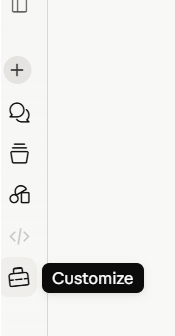
Open the icon rail on the left side of Claude.ai and select Customize.
-
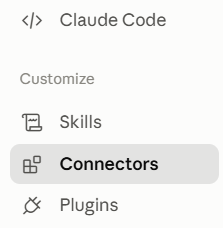
This opens Settings. Select Connectors from the Customize section of the settings menu.
-
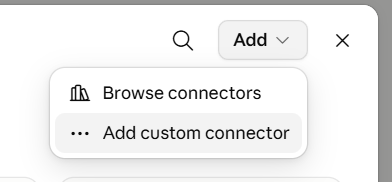
On the Connectors page, click Add, then Add custom connector.
-
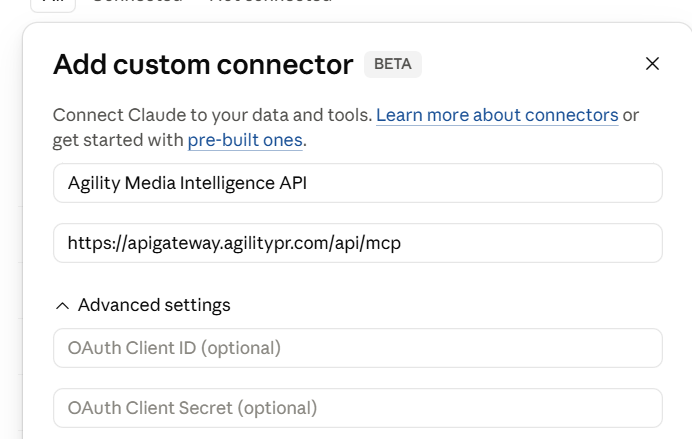
Give the connector a name (e.g.
Agility Media Intelligence API) and set the URL to:https://apigateway.agilitypr.com/api/mcpLeave the OAuth Client ID and OAuth Client Secret fields under Advanced settings blank — you'll authenticate with your Agility account in the next step. Click Add.
-
Claude will redirect you to your Agility login (single sign-on) to authenticate and authorize access. Once authorized, the connector shows as Connected and is available to use in any chat.
Custom connectors added this way connect at the account level — anyone using your Claude.ai account will be able to use this connector once it's added.
Admin-provisioned setup
On Team and Enterprise plans, custom connectors are managed centrally: an organization Owner adds the connector once for the whole workspace, and members simply connect to it from their own Connectors list — no URL or configuration to enter.
For admins
If you're the Owner setting this up for your organization, add the connector from Organization settings > Connectors using the same URL as above:
https://apigateway.agilitypr.com/api/mcp
Anthropic's guide covers the admin-side steps in detail: Getting started with custom connectors using remote MCP (see the organization/admin setup section). Once added, it becomes available to members as a Custom connector — each member still authenticates with their own Agility account, so Claude only ever accesses coverage that member has access to.
For members
Once your admin has added the connector for your organization:
-
Open the icon rail on the left side of Claude.ai and select Customize.
-
This opens Settings. Select Connectors from the Customize section of the settings menu.
-
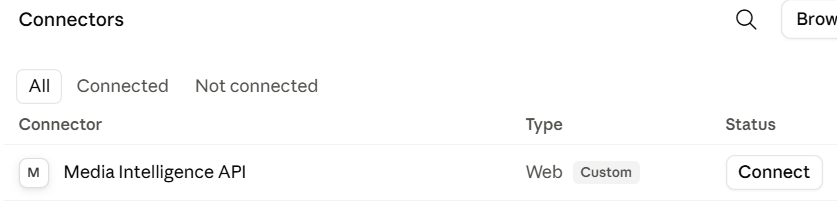
Find the connector your admin added (labeled Custom) in the list and click Connect.
-
Claude will redirect you to your Agility login (single sign-on) to authenticate and authorize access. Once authorized, the connector shows as Connected and is available to use in any chat.
Usage
With the connector added, enable it for a chat from the tools menu (the paperclip/tools icon below the message box), then just ask Claude what you're looking for in plain language. For example:
- "Search for news coverage of Tesla recalls from the last 7 days."
- "Find negative sentiment articles mentioning our brand in the last month, and summarize the main themes."
- "What has broadcast media said about the Bank of Canada's latest rate decision this week?"
- "Pull recent social media posts about our competitor's product launch, excluding retweets/syndicated copies."
Claude will translate the request into a boolean search expression and any relevant filters, call the ad_hoc_search tool, and summarize or analyze the results. If a request is ambiguous or too broad, Claude may ask a follow-up question before searching.
Claude Code Custom MCP Server
Claude Code can also connect to remote MCP servers, either for your user account or scoped to a single project, using the claude mcp add command or a project's .mcp.json file. Once connected, tools exposed by the server are available to Claude Code alongside its built-in tools during any session.
This section walks through adding our MCP server so Claude Code can search media coverage as part of your normal workflow.
Setup
Add the MCP server with the claude mcp add command, specifying the HTTP transport:
claude mcp add --transport http media-intelligence https://apigateway.agilitypr.com/api/mcp
By default this adds the server to your local project scope. To make it available across all your projects, add -s user:
claude mcp add --transport http media-intelligence https://apigateway.agilitypr.com/api/mcp -s user
Alternatively, add it directly to a project's .mcp.json so it's shared with anyone working in the repo:
{
  "mcpServers": {
    "media-intelligence": {
      "type": "http",
      "url": "https://apigateway.agilitypr.com/api/mcp"
    }
  }
}
The first time Claude Code calls the server, it will open a browser window and redirect you to your Agility login (single sign-on) to authenticate and authorize access. You can check connection status at any time with the /mcp command.
Usage
Once the server is connected, just describe what coverage you're looking for as part of your normal Claude Code session — no special syntax needed. For example:
- "Search media coverage for mentions of our company from the last 30 days and summarize sentiment trends."
- "Find press releases and news articles about our upcoming product launch, and check whether any outlets have already leaked details."
- "Look up broadcast and print coverage of our CEO's keynote from this week."
This is especially useful when researching a topic alongside other work in a session — e.g. pulling in recent coverage of a competitor while drafting a competitive analysis, or checking press pickup on a release you just shipped.